How to Turn a Drawing Into a GIF on iPhone and Android
To turn a drawing into a GIF on your phone, draw it in Doodraw, open the export panel, choose GIF, set the Duration and the Transparent background toggle, then export and save it. Doodraw works the same way on iPhone and Android: every stroke moves as you draw it, so there are no frames to make first. The only real differences are the name of the stylus setting and where the file gets saved, and both are covered below.
What you need
- Doodraw on an iPhone or iPad (iOS 16.4 or later) or an Android phone. It is free to download, and exporting animations is free too.
- A finger or a stylus. Both work.
- A drawing. Anything with a few confident lines is enough. If you have never used animated brushes, our guide on how to animate your drawings covers the basics.
How to turn a drawing into a GIF, step by step
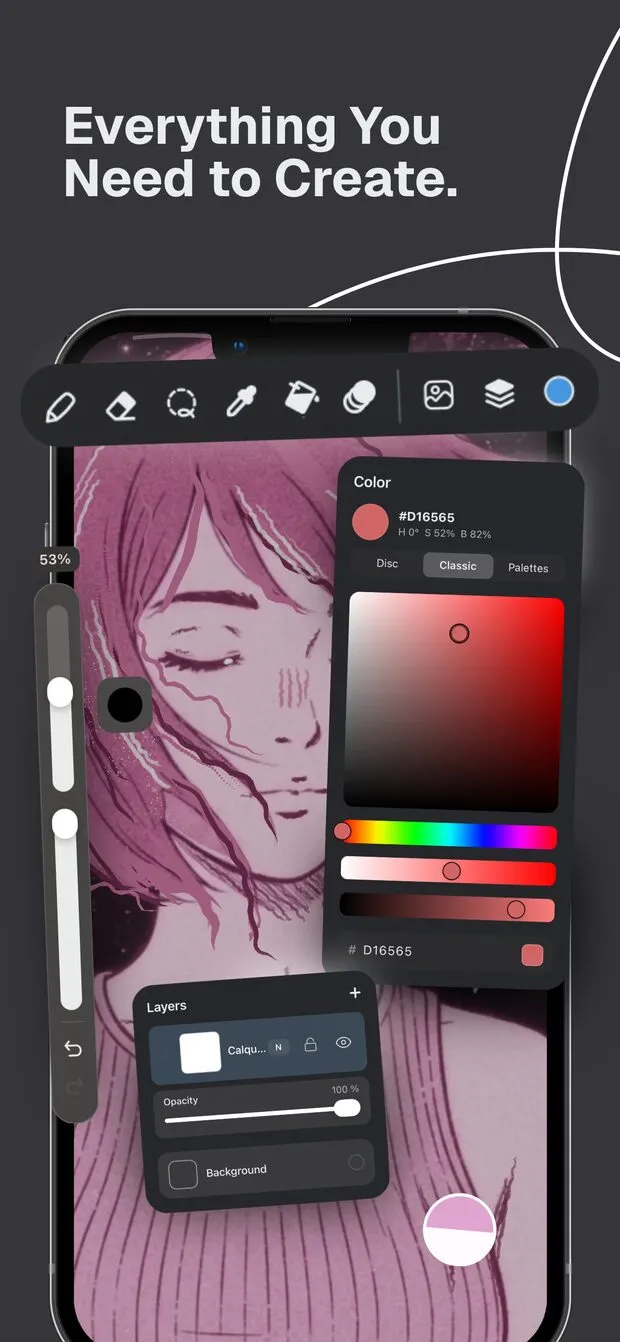
Step 1: Draw something that moves
Open a new canvas and draw. Each brush in Doodraw has motion built into the stroke, so lines start wiggling the moment you lift your finger or pen. There is no timeline and no keyframes. You can tune a brush’s animation speed, jiggle and thickness before you draw, and put separate elements on their own layers.
If you draw with a stylus and your palm keeps leaving marks, turn on the setting that stops fingers from drawing. This is the first place the two platforms differ:
- On iPhone and iPad, the setting is called Apple Pencil only.
- On Android, it is called Stylus only.
The classic hand-drawn wobble, where lines are redrawn slightly differently on every frame, is called boiling lines. Our article on boiling lines animation explains the look and how to get it.
Step 2: Open the export panel
Tap the export icon in the small toolbar above the canvas. A panel titled Export canvas opens with two groups of buttons:
- Still image: JPG and PNG.
- Animation: Animated PNG (marked Recommended), GIF and MP4.
Pick GIF to open its settings. Animated PNG opens the same settings screen. MP4 has no settings screen of its own: tapping it starts the export right away, using the Duration and Mode you last set for GIF or Animated PNG (2 seconds and Normal by default).
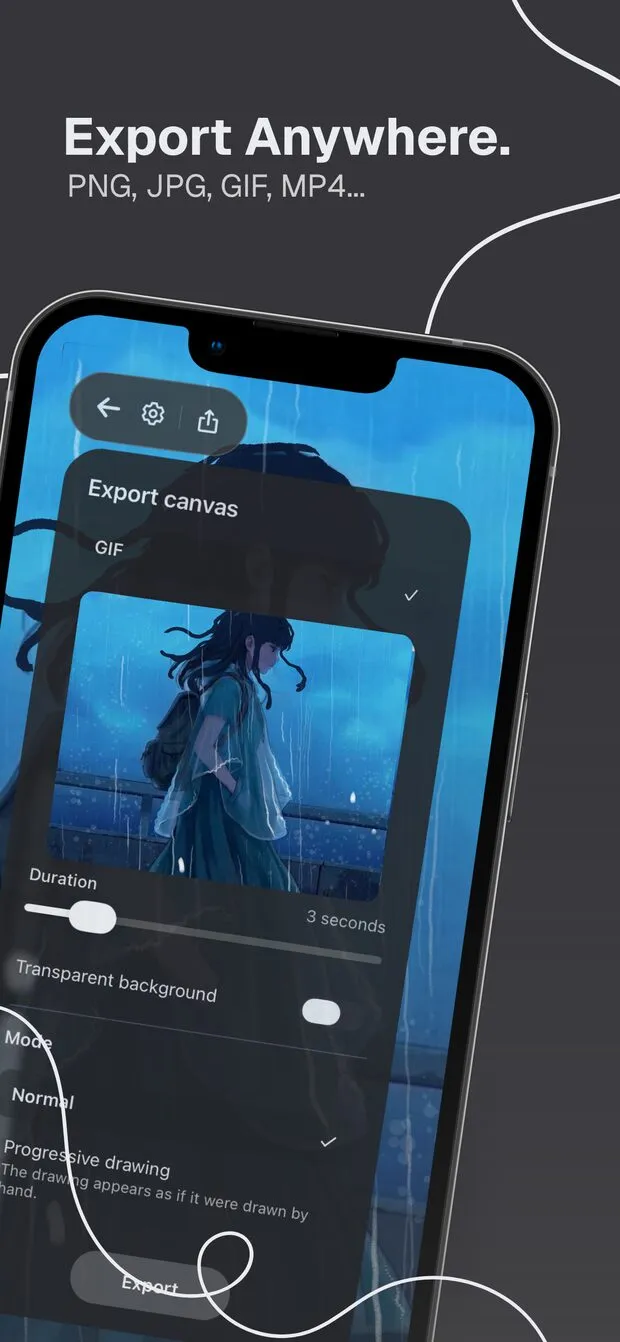
Step 3: Set the Duration
The Duration slider runs from 1 to 15 seconds in one second steps. Above it, a live preview plays your drawing on a loop at the length you choose, so you can see the result before you export anything.
A few rules of thumb:
- 2 to 3 seconds is plenty for a boiling line doodle that will loop in a chat.
- Longer durations make sense for Progressive drawing mode (step 5), where the whole drawing has to appear within the time you set.
- Shorter is lighter. Doodraw writes GIFs at 15 frames per second, so a 15 second GIF holds 225 full images. That matters when an app has an upload limit.
Step 4: Choose the Transparent background setting
The Transparent background toggle removes the canvas background, so only your lines remain. The preview switches to a checkerboard to show which areas are transparent. This option is free.
Leave it off when the GIF will be viewed on its own, for example in a chat. Turn it on when you want to place the animation over something else, like a photo, a slide or a sticker layout. If you turn it on for a GIF, read the troubleshooting section about jagged edges first.
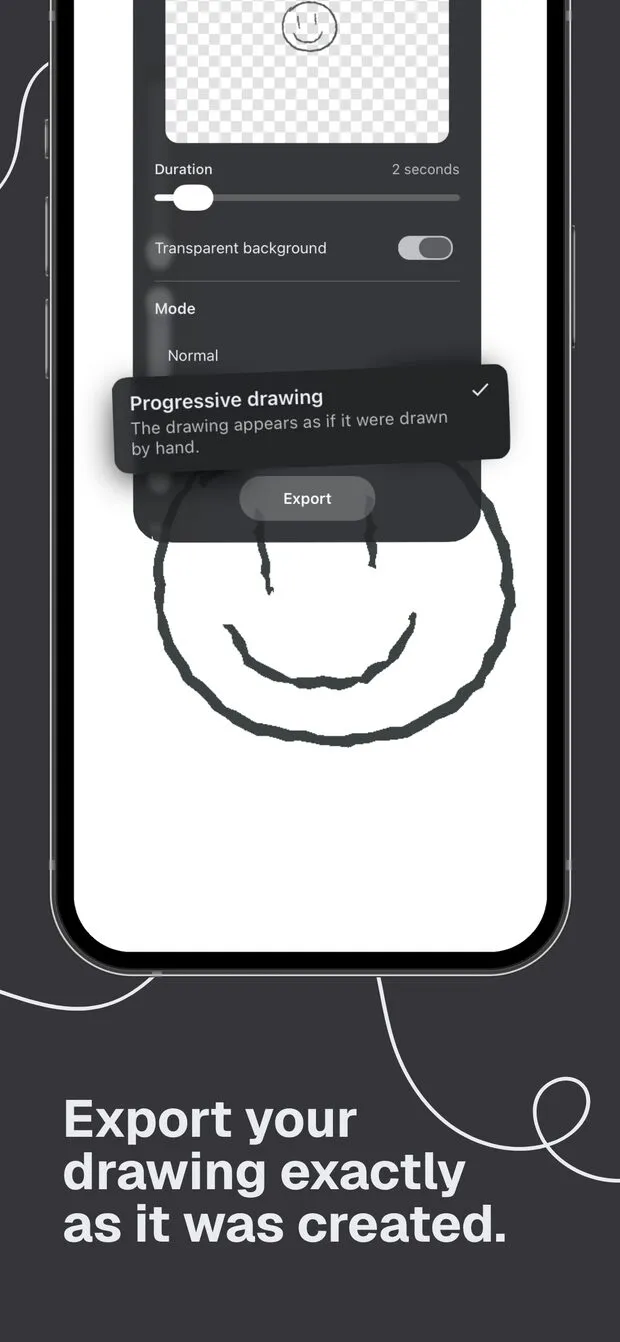
Step 5: Pick a Mode: Normal or Progressive drawing
Under Mode you have two choices:
- Normal exports the drawing as it looks on the canvas, with every stroke animating.
- Progressive drawing makes the drawing appear stroke by stroke, in the order you drew it, as if it were being drawn by hand. It is a Doodraw Pro feature.
If you used the frame-by-frame assistant, the Mode section is hidden: your frame sequence is already the animation.
Step 6: Export and save the file
This is the second place iPhone and Android differ.
- On iPhone and iPad, tap Export. When the file is ready, the system share sheet opens. Tap Save Image to put the GIF in Photos, or send it straight to an app from the same sheet. MP4 files show Save Video instead.
- On Android, the top of the Export canvas panel has a Share or Gallery switch. Choose Gallery and the button becomes Save to gallery. GIF and PNG files land in the Pictures/Doodraw folder, MP4 files in Movies/Doodraw, with names like
Doodraw_20260912_114205.gif. Choose Share to open the Android share menu instead.
Exports are sized so the longest side is at most 1920 pixels.
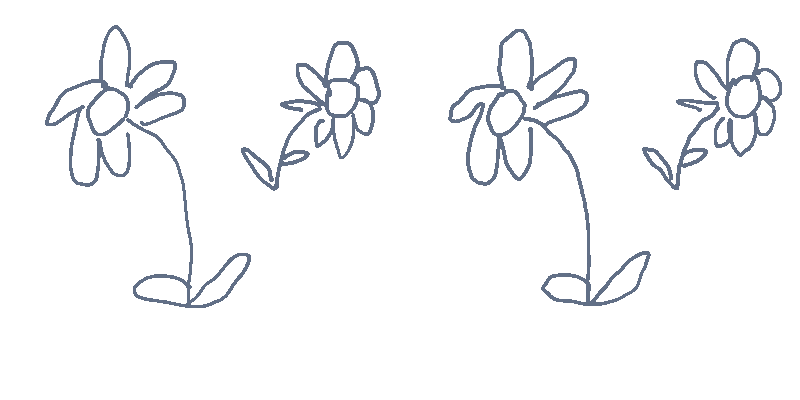
Here is the kind of result you get from a few quick lines in Normal mode:
iPhone vs Android at a glance
| iPhone and iPad | Android | |
|---|---|---|
| Stylus setting | Apple Pencil only | Stylus only |
| How to save | Export, then Save Image (or Save Video) in the share sheet | Gallery, then Save to gallery |
| Where the file goes | Photos app | Pictures/Doodraw (GIF, PNG), Movies/Doodraw (MP4) |
| Formats, duration, transparency, modes | Same on both | Same on both |
GIF vs Animated PNG vs MP4: which format to choose
| Format | Transparency | Quality | Compatibility | Best for |
|---|---|---|---|---|
| GIF | Yes, but on or off per pixel, so soft edges can look jagged | Limited color palette, 15 fps | Accepted almost anywhere an image is | Chats, forums, and anywhere that asks for “a GIF” |
| Animated PNG (Recommended) | Real 8-bit transparency, soft edges stay clean | Lossless, 15 fps | Support varies by app. Apps without support usually show only the first frame | Transparent overlays and stickers in apps and sites that support APNG |
| MP4 | No transparent background | H.264 video at 30 fps | Plays as a regular video on iOS and Android | Instagram Stories, social video, and uploads with tight file size limits |
The short version: pick GIF when the destination asks for a GIF, Animated PNG when you need clean transparency and the destination supports it, and MP4 when the destination treats everything as a photo or a video.
Using your GIF in messaging and social apps
Every app handles animated files its own way. The notes below come from each company’s official help pages as of September 2026.
Messages on iPhone
In a conversation, tap the plus button and pick the GIF from your photos. Apple notes that your carrier may set size limits for attachments and iPhone may compress photo and video attachments when necessary. If someone sends you a GIF, you can touch and hold it, then tap Save to add it to the Photos app.
Google Messages on Android
Google Messages lets you send and receive photos, videos, audio files or GIFs as multimedia over RCS. Open a conversation, tap Gallery and choose the file. Before sending, you can tap the HD button: HD is optimized for chat and uses less data, while HD+ sends media at its original quality.
Instagram Stories
Instagram’s own Stories guide says to tap the gallery icon in the bottom left to upload a photo or video from your camera roll, and that a single story clip can be up to 60 seconds long. Because Stories are built around photos and videos, export an MP4 for Stories. Doodraw’s 15 second maximum fits inside a single clip.
Discord
Discord’s File Attachments FAQ sets the maximum upload at 20MB for accounts without Nitro and notes that Discord is experimenting with upload limits. If you upload several GIFs or images in one message, they are shown together as a mosaic. MP4 video encoded with H.264, which is what Doodraw exports, is listed as a supported file type. If a long GIF is over the limit, shorten the duration or send the MP4.
Slack
Slack lets you add files up to 1GB. On mobile, tap the plus icon next to the message field, then choose an image from your library or tap Upload file. If a teammate sees your GIF frozen, check their animation setting, which is a personal preference: Allow Animated Images under Animation & Haptics on iOS, Allow animated images & emoji on Android, and Automatically play animations in Slack under Accessibility on desktop.
Troubleshooting
Jagged or speckled edges on a transparent GIF
The GIF format can only make a pixel fully transparent or fully opaque. The soft, half-transparent pixels along the edge of a line have to snap one way or the other, which can look rough on a colored background. You have two fixes:
- Export as Animated PNG. It keeps real 8-bit transparency, so edges look exactly like the canvas.
- Turn Transparent background off. With a solid background, edges blend smoothly and the GIF looks clean everywhere.
A watermark on the export
Free exports from Doodraw carry a small watermark. Drawing, animating and exporting stay free. Doodraw Pro removes the watermark from every export format.
The loop jumps when it restarts
GIFs from Doodraw loop forever, so the moment the animation restarts is visible again and again.
- Watch the preview first. It loops at the exact Duration you set, so any jump you see there will also be in the file. Try one second more or less.
- Boiling line brushes hide the seam well. Each frame is a fresh wobble of the line, so there is no obvious start or end point.
- For frame-by-frame animations, choose a duration that holds complete cycles of your sequence. A sequence of 12 frames at 12 fps lasts one second, so any whole number of seconds ends on a complete cycle.
- In Progressive drawing mode, the drawing builds up over the full duration and then starts again from empty. A drawing with many strokes needs more seconds to be readable.
The Progressive drawing option does nothing
Progressive drawing is part of Doodraw Pro: on the free plan, selecting it opens the Pro screen. If the Mode section is missing entirely, your project uses the frame-by-frame assistant, where the mode does not apply.
The file is too big for an app
Lower the Duration, since every second adds 15 GIF frames, or export an MP4. Video compression usually produces much smaller files than GIF for the same animation.

Other ways to make a GIF from a drawing
Doodraw is not the only route. Here are two other approaches, each with a different amount of work.
Draw every frame in a frame-by-frame animation app
Traditional animation apps ask you to draw each frame yourself, then play them in sequence. FlipaClip, by Visual Blasters LLC, is a well known example: its App Store listing mentions a timeline and onion skin, and says you can save your work as MP4, GIF or PNG sequences. It is free to download with in-app purchases, as of September 2026. This gives you full control over motion, at the cost of drawing every frame. Doodraw also has a frame-by-frame assistant with onion skin (part of Pro) for when you want that control without leaving your animated brushes.
Combine still images with Apple Shortcuts
On iPhone and iPad, Apple’s Shortcuts app has a Make GIF action. Apple’s own Shortcuts guide describes an example shortcut where Make GIF uses your latest photos to build an animated GIF. You could draw two or three slightly different versions of the same sketch in any app, save them as images, and combine them this way.
If you would rather skip frames entirely, that is exactly why we built Doodraw: you draw once and the lines move on their own. You can read more about the two French artists who make it.
FAQ
How do I turn a drawing into a GIF on my phone?
Draw in Doodraw, where every stroke already moves. Tap the export icon above the canvas, choose GIF under Animation, set the Duration (1 to 15 seconds) and the Transparent background toggle, then tap Export. On iPhone, save the file with Save Image in the share sheet. On Android, switch the panel to Gallery and tap Save to gallery.
Can I make a GIF with a transparent background on iPhone or Android?
Yes. Doodraw has a Transparent background toggle for GIF and Animated PNG, and it is free on both platforms. For clean soft edges on a transparent background, pick Animated PNG: GIF transparency is on or off per pixel, so anti-aliased edges can look jagged on colored backgrounds.
Why does my transparent GIF have jagged edges?
The GIF format can only make a pixel fully transparent or fully opaque, so the soft, half-transparent pixels along a line have to snap one way or the other. Export as Animated PNG instead, which keeps real 8-bit transparency, or turn the Transparent background toggle off so the edges blend into a solid background.
Is it free to export a GIF from Doodraw?
Yes. Drawing, animating and exporting GIF, Animated PNG and MP4 files are free in Doodraw. Free exports carry a small watermark. Doodraw Pro removes the watermark and adds the Progressive drawing export mode, the frame-by-frame assistant, per-layer animation controls and 9 premium animated brushes.
How long can a GIF exported from Doodraw be?
The Duration slider goes from 1 to 15 seconds, and the same limit applies to Animated PNG and MP4. The GIF loops forever once it is shared, so a short duration of 2 or 3 seconds is often all a boiling line drawing needs.
Make your first animated GIF
Draw a few lines, open Export canvas, pick GIF and save it to your phone. It takes about a minute, and it is free on iPhone, iPad and Android. Get Doodraw for free.